Edit: the very next day after publishing this I found out that Home assistant actually has some pretty great Frigate integration. Which makes is set up a thousand times easier. So if you plan on going down the route of DIY home security I would probably recommend something like that.
This will detail the process I went through to automate the process is much as possible as well as make it visually appealing so that the customer would have to use the terminal as much as possible.
Originally to make that golden image that I could reuse on each machine I was going to use Cubic. But after spending an absurd amount of time troubleshooting issues I decided to pivot Clonezilla. But it now cricket to this part either since I kept trying to improve things and couldn’t force myself to stop and make an image. But it looks like pretty good software and I just found out that it works with Ventoy. If need be all update this post with a guide when I get around to it.
Dashboard script
I wrote this script after I installed everything. The idea behind it was to give my buddy an easy way to find the local IP address and check to see if both the services were running in one go. It also shows the system uptime and disk percentage. Which also reminds me if I was using this in a actual system I would need to edit the script to show more than one drive or select a specific drive to show since my laptop only has one.The dashboard script only updates once per terminal. I experimented with having the script update the information on the screen but then that just resulted in the terminal flashing so I decided to keep it static.
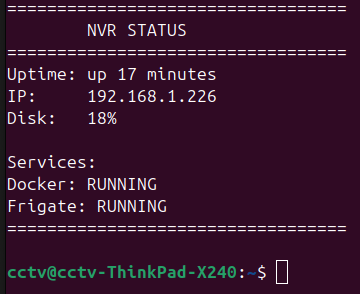
Very important note to get the most out of the script you going to have to set Docker and Frigate start on boot. Add this line to your Docker compose file and make sure that it matches formatting.
docker update --restart unless-stopped frigateRun the following command to add yourself to the docker group otherwise your script will think that Frigate is down when it isn’t.
sudo usermod -aG docker $USERAlso the script must be stored in the following directory in order to start in the terminal. /etc/profilre.d/
Frigate Config Wizard
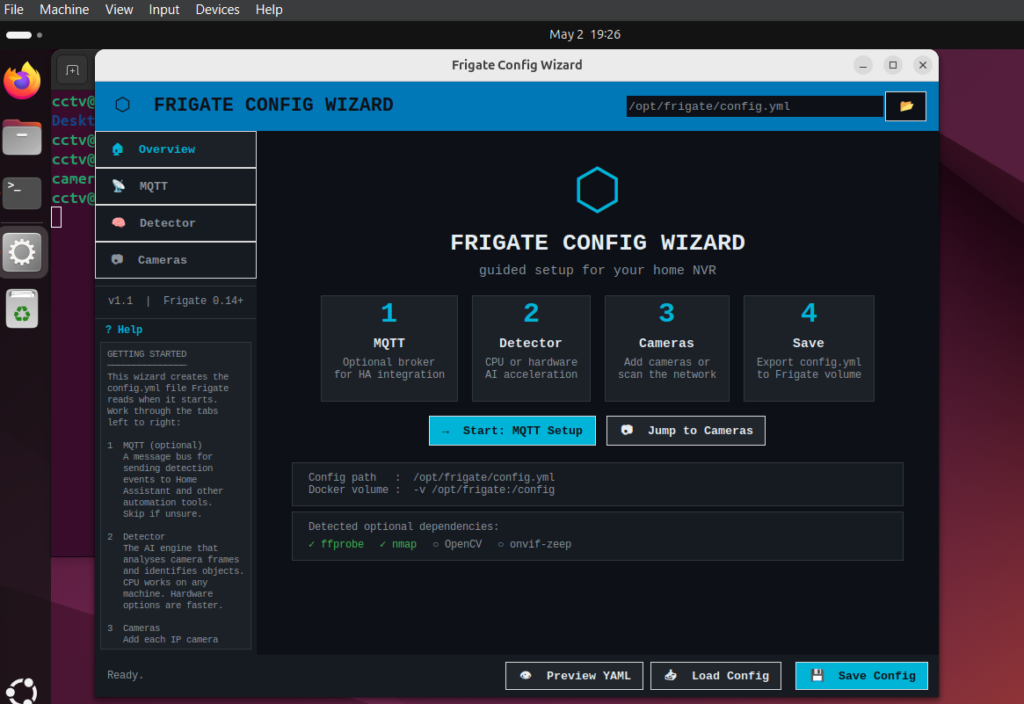
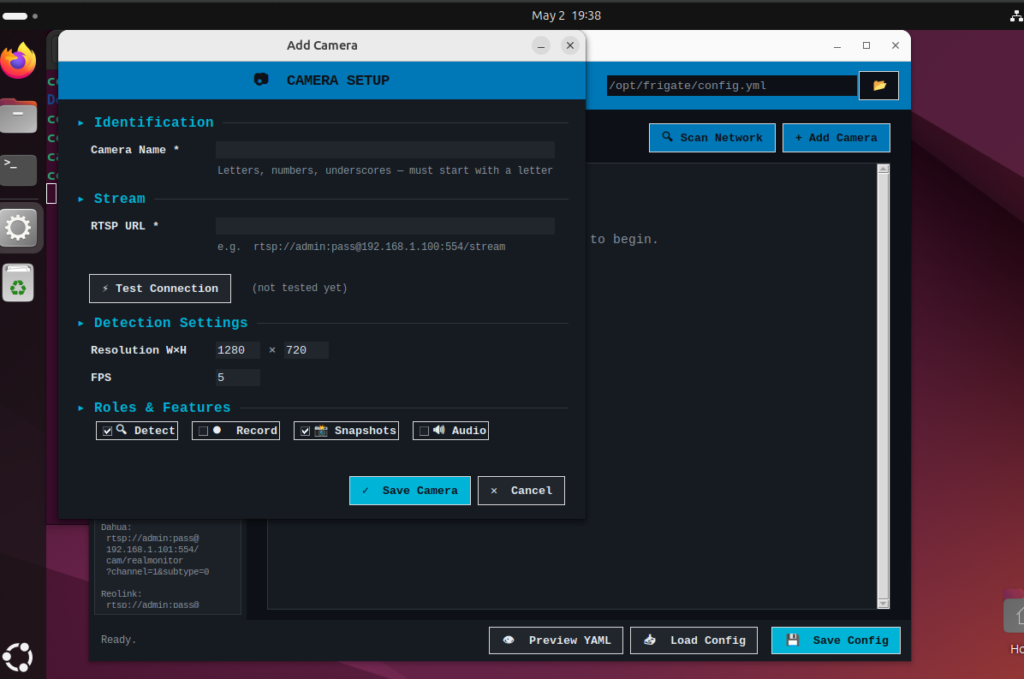
I used Claude to throw together a set up wizard which looks fantastic. I still need to do some testing to see if it actually functions properly. It can apparently use nmap scan the network for cameras and gives the user a sleek UI to guide them through the setup process with recommendations and useful information. There some visual quirks that still need to be ironed out but mostly I want to make sure that you can accurately add cameras without breaking things. And to be honest since I’m not selling this thing anymore I could do without the scanning function, if it works great but I’m not holding my breath.
Future plans
Shortly before abandoning the project I was researching ways that I could mitigate Docker breaking and how to fix it. Around the same time I was also casually researching push notifications and it seemed like the best way to do that was with home assistant. So the plan became to install Proxmox and Put everything in their own VM this way I could easily. Take snapshots of everything and allows me to rollback if anything goes wrong.
Fortunately I don’t have to perfect the golden image before doing this but I still need to get my hands on some cameras to properly test push notifications. Unfortunately to send the user push notifications from outside the house I need to use some sort of VPN. This probably means using WireGuard or open VPN. My friend encouraged me to look into push notifications in the beginning I just didn’t get around to it until the 2 1/2 week mark. Funny how I was avoiding port forwarding but if we wanted push notifications I was going to have to do it anyway. But if we did end up selling this I was going to insist that push notification would’ve been a premium feature that would come with an up charge.
Other random side objectives that don’t matter at all would be making an icon that the user can click to run the setup Wizard. Actually was working on this for a while but decided to come back to later. It was a lot more necessary at the time but like I said I’m not selling this anymore. If I can perfect this it might go in a friends house or two, which makes things easier since they are more technical and I don’t have to worry about getting sued.
Other objectives would be installing a custom terminal theme, custom icons and maybe editing things like the grub menu and the startup icon but that which is be for fun.
Thanks for reading, this was like therapy for me. If you haven’t already check out part 1 if you reading this first I’m sorry you must have no context. If you have any suggestions or if this helps you out in any way please let me know.